 orbitrace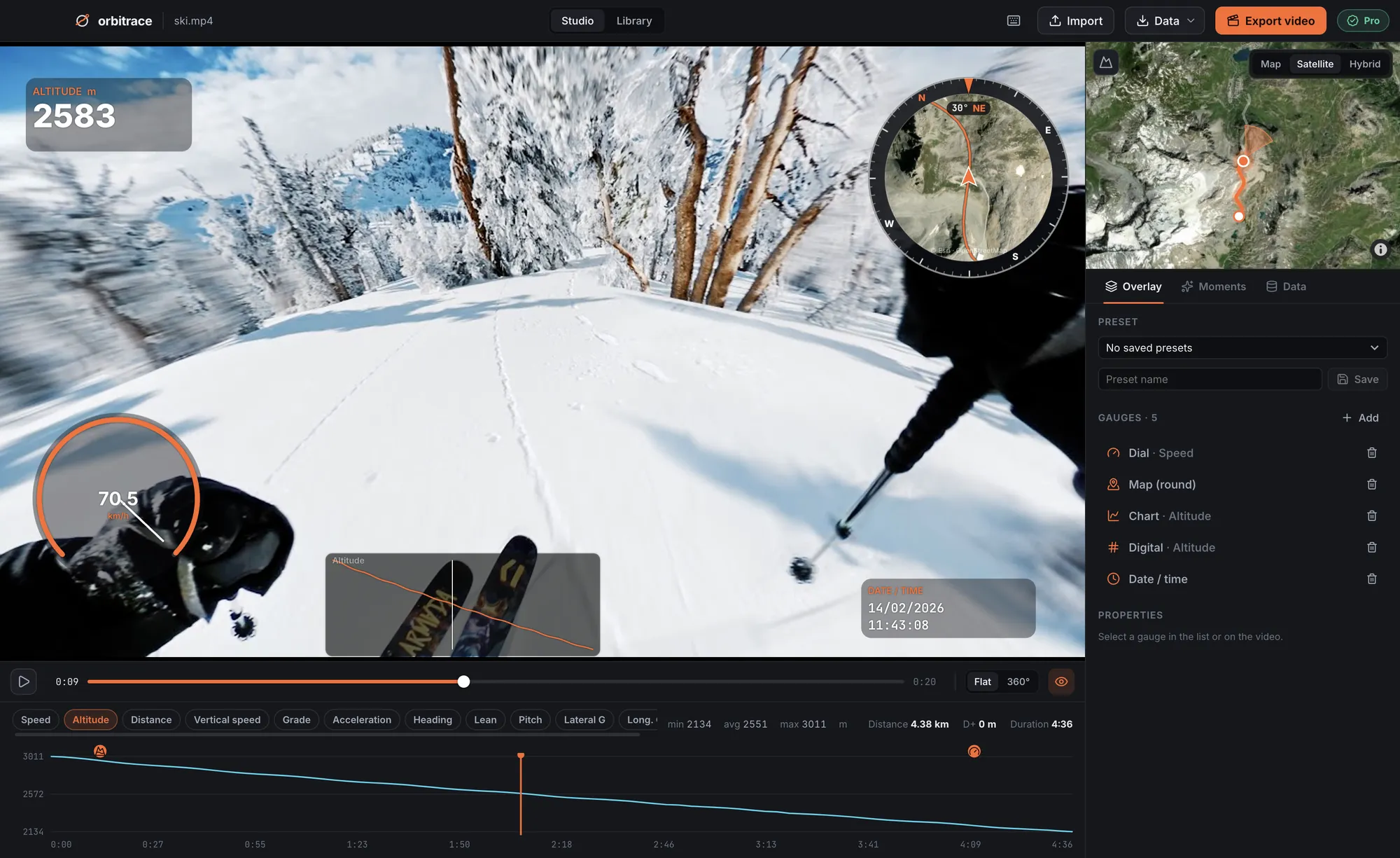
What is an .insv file?
An .insv is the raw video of an Insta360 360° camera (X3, X4, X5…). Under its own extension, it is a standard MP4 container, with a few particularities:
- Two videos instead of one: one per lens. Each is a circular fisheye image covering a bit more than 180°. They are only “stitched” into a 360° sphere later, by software.
- HEVC (H.265) video on recent models, in very high resolution: that is what makes 8K files heavy to play.
- A block of camera data at the end of the file: lens calibration, gyroscope and accelerometer, and GPS when a phone or remote provided it.
And the .lrv and .insp files?
| Extension | What it is | Keep it? |
|---|---|---|
| .insv | The full-quality 360° video | Yes, it is your original |
| .lrv | Low-resolution copy used for the preview on your phone | Not needed once the .insv is safe |
| .insp | A 360° photo | Yes |
How to open an .insv file
- Insta360 Studio (free, Mac and Windows): the official software, the reference for stitching and reframing.
- The Insta360 app on your phone, if the file is still on the camera or was transferred to the phone.
- A regular video player (VLC…): since it is an MP4 inside, many players open it, but you will see the raw fisheye circles, not a 360° view.
- Orbitrace plays .insv files in 360° up to 8K, hardware-decoded, and reads their telemetry. It does not convert them to a flat 360° MP4: for that, use Insta360 Studio.
How to convert an .insv to MP4
- Open the file in Insta360 Studio.
- Choose what you want: a 360° MP4 (to upload to YouTube 360, for example) or a reframed “flat” video where you choose the viewing angle over time.
- Export. Studio writes the MP4 next to the .insv by default.
If you want your speed or a map on top, open the same .insv in Orbitrace: it finds the reframed MP4 next to it and burns the gauges in at export.
Why an .insv won’t open: cut-off recordings
The camera writes the video as it goes, but it writes the index of the file (the part that tells a player where each image is) and its data block only when the recording stops properly. If the battery dies, the card is pulled out or the camera crashes, the file stays without its index: it has the right size but nothing can read it.
- Try Insta360’s own tools first: the app and Studio can offer to repair an interrupted file. Insta360 support can also help.
- Do not reformat the card before you have tried: the video data is usually still there.
- Even repaired, such a file may have lost its GPS and sensor data, since they are written at the end.
Where is the GPS in an .insv?
In the data block at the end of the file, alongside the gyroscope and accelerometer readings. The X3, X4 and X5 have no GPS chip: the position is only there if your phone (Insta360 app) or an Insta360 GPS remote supplied it while you were filming. Our guide to Insta360 GPS explains how to get a clean track.